
Most desktop environments provide core applications such as a terminal, file manager and text editor. These provide much the same functionality as counterpart applications in other desktop environments, but can clutter up menus with seemingly redundant applications.
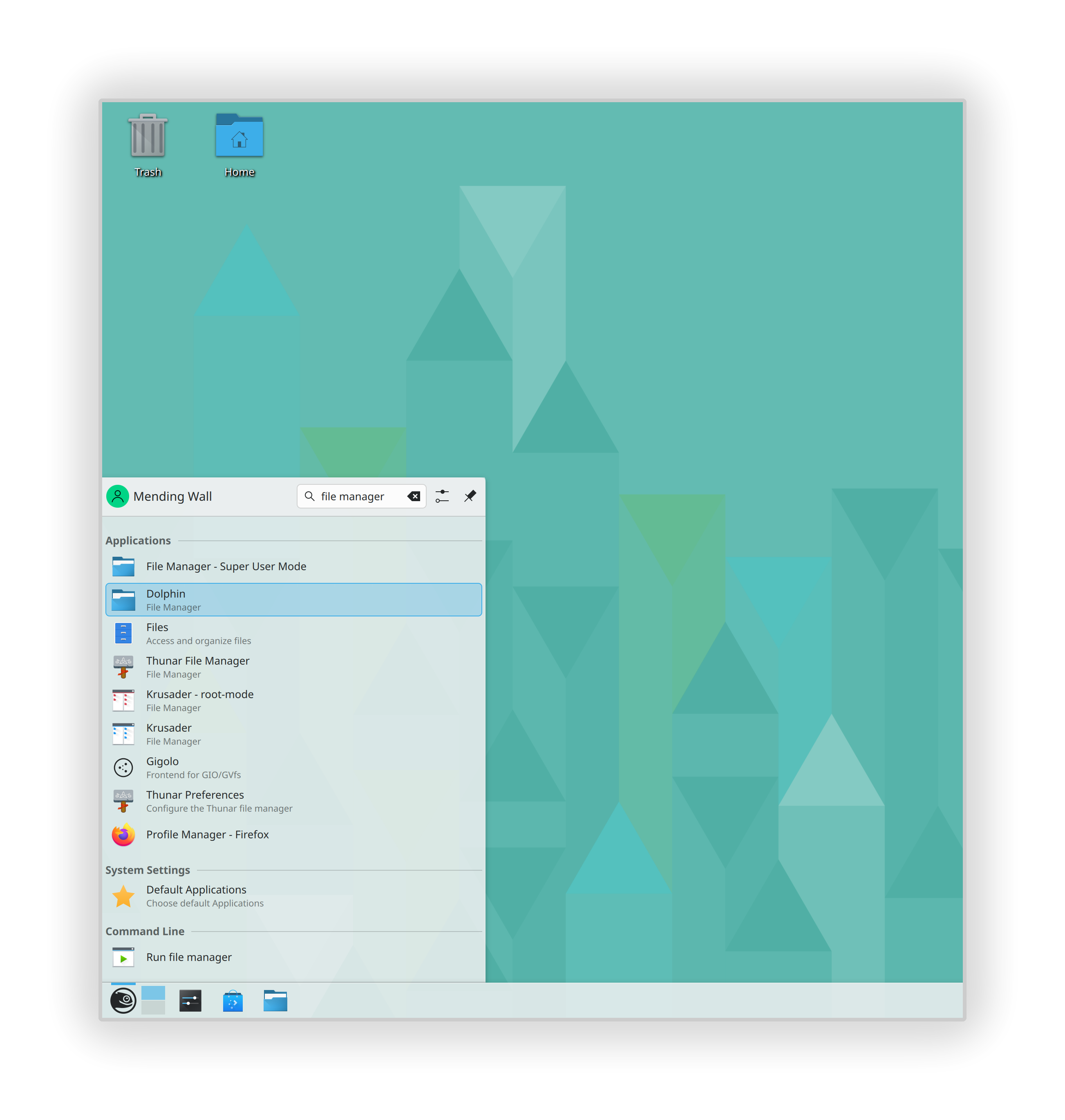
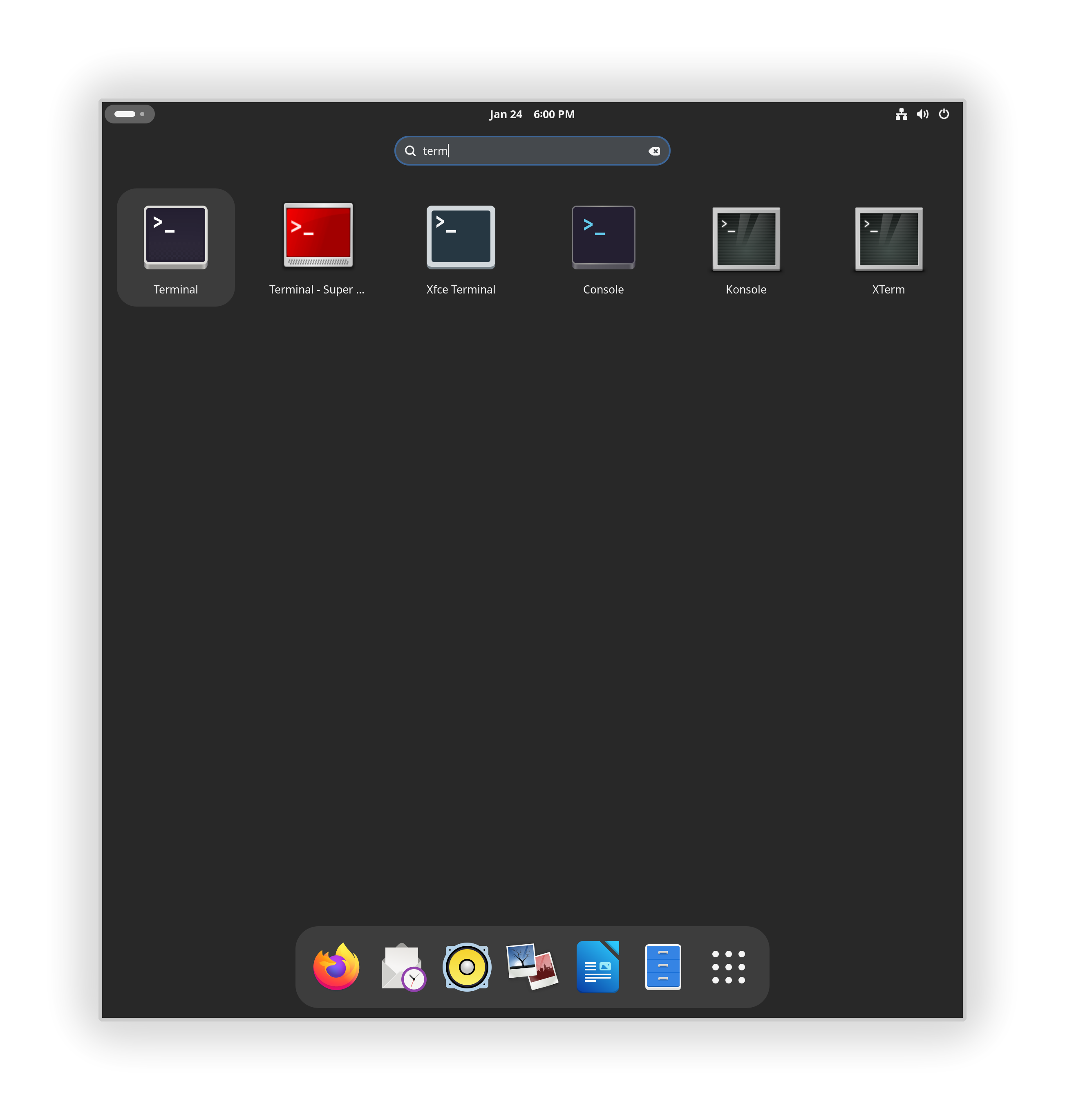
To have Mending Wall tidy up menus automatically, enable its Tidy Menus feature. It will then show core applications in the menu for their respective desktop environment only.
What it does
Tidy Menus applies a set of rules to show certain applications in their native desktop environment only. It does not apply to all applications. The rules are generally consistent with the notion that you, the user, will always prefer a native app over a non-native app. So you will use Console, Nautilus and Text Editor on GNOME, but Konsole, Dolphin and Kate on KDE Plasma.
The rules apply mostly to core applications with counterparts in other desktop environments, as well as many games. They do not apply to larger applications that are too featureful to be considered counterparts, despite having similar aims, such as GIMP and Krita. The rules only affect visibility in menus; all applications are still available in all desktop environments and can be launched by other means (such as from the command line).
You can also use an app like Libre Menu Editor to change menus, or edit .desktop files directly. Mending Wall will not override changes made with other apps. The recommended approach is to enable Tidy Menus in Mending Wall to automate the process as much as possible, then use another app for refinement if necessary.
How it works
This section is for users who want to know exactly what Mending Wall is doing to their system.
When Tidy Menus is enabled, Mending Wall starts a background process named mendingwalld that will also auto-start every time you log in. This process applies the menu rules, and reapplies them when new applications are installed. When Tidy Menus is disabled, it will undo any changes.
The process acts as follows:
It considers all
.desktopfiles installed in theapplicationssubdirectory of any directories listed in theXDG_DATA_DIRSenvironment variable (e.g./usr/share/applications,/usr/local/share/applications).For each
.desktopfile it determines, according to its rules, whether theOnlyShowInorNotShowInkeys should be updated.If so, it copies the
.desktopfile into$XDG_DATA_HOME/applications/and updates those keys. It also adds an entryX-MendingWall-Tidied=truefor record keeping, in case Tidy Menus is disabled in future and changes must be undone. If a.desktopfile for the application already exists in$XDG_DATA_HOME/applications/, it is not changed (in this way, customizations made with other apps are not overwritten). If the environment variableXDG_DATA_HOMEdoes not exist then the default value$HOME/.local/shareis used.It continues to monitor for changes to any of the directories listed in
XDG_DATA_DIRS. When changes occur it reapplies the rules. For example, if a new application is installed, one or more new.desktopfiles will appear in these directories and be subject to the rules.
Configuration
This section is for contributors to help improve Mending Wall. The installed rules are meant to be suitable for everyone, with adjustments made with other apps.
The rules applied by Tidy Menus are set in the config file menus.conf. If the environment variable XDG_DATA_HOME is set and $XDG_DATA_HOME/mendingwall/menus.conf exists then that file is used, otherwise $HOME/.local/share/mendingwall/menus.conf, otherwise the directories listed in XDG_DATA_DIRS are checked in order for mendingwall/menus.conf until the file is found.
If menus.conf is in a system directory and you wish to make changes to it, first copy it to $XDG_DATA_HOME/mendingwall/menus.conf or $HOME/.local/share/mendingwall/menus.conf.
The config file is a KeyFile. It contains any number of group headers to identify applications, each followed by key-value pairs that specify the desktop environments in which to show that application. For example:
[org.kde.Konsole]
OnlyShowIn=KDE

[org.gnome.Console]
OnlyShowIn=GNOME;X-Cinnamon
The group headers are surrounded by square brackets ([...]) and identify the applications. Each should be the name of the .desktop file of the application, but without the .desktop extension. The names are usually, but not always, reverse domain-name identifiers (e.g. they start with org.gnome. or org.kde.).
Each key is followed by an equals sign (=), and where multiple values are required they are separated by semicolons (;). Recognized keys are:
| Key | Description |
|---|---|
OnlyShowIn |
The application will only be shown in these desktop environments. |
NotShowIn |
The application will be shown in all but these desktop environments. |
It only makes sense to use one of these. They are copied into the .desktop file of the application. Valid values are the same as those that appear in the XDG_CURRENT_DESKTOP environment variable set by desktop environments, e.g. GNOME and KDE. These are case sensitive.
After modifying menus.conf, disable the Tidy Menus feature, then enable it again, to apply changes.
Relevant specifications
- The XDG Base Directory Specification for the
XDG_DATA_HOMEandXDG_DATA_DIRSenvironment variables. - The XDG Desktop Entry Specification for
.desktopfiles, especially the Recognized desktop entry keys section for interpretation of theOnlyShowInandNotShowInkeys and relatedXDG_CURRENT_DESKTOPenvironment variable. - The XDG Desktop Menu Specification and especially Registered OnlyShowIn environments.